



Documentation
Complete guide to using Pedigree for your racing pigeons. Learn how to effectively use all features.
Settings
Configure your fancier profile, pedigree preferences, and account options.
Fancier Settings
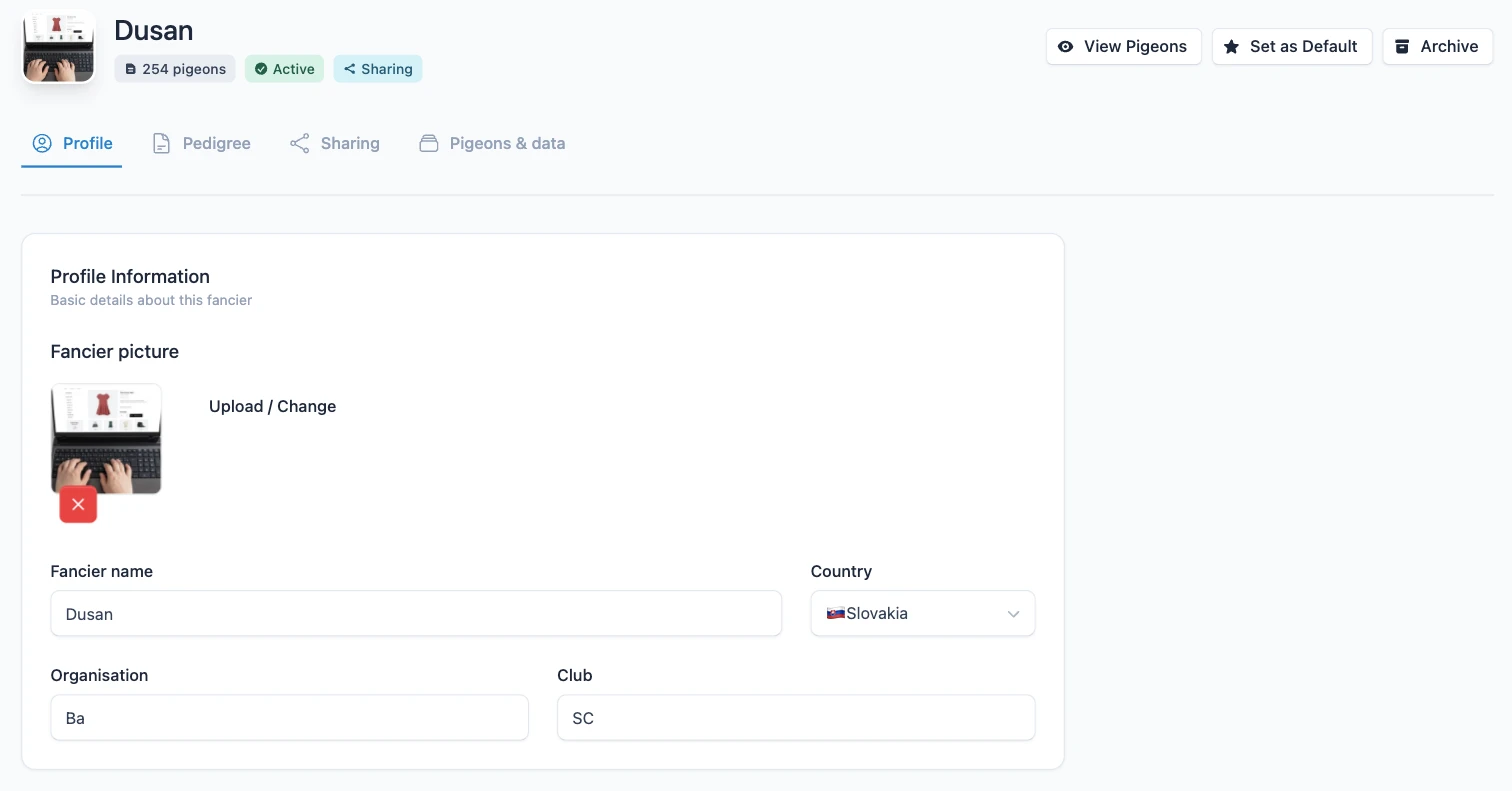
Open the settings from the cog icon next to the fancier name in the menu. They are split into four tabs, so everything that belongs together is in one place:
- Profile – photo, name, country, organisation and club.
- Pedigree – how printed and shared pedigrees look: generations, font, header, photos, contact and background.
- Sharing – whether other fanciers can find your pigeons and whether you have a public profile.
- Pigeons & data – display preferences, categories, the MyPigeons connection and moving pigeons to another fancier.
Saving Changes
As soon as you change something, a bar with Save changes and Discard changes appears at the bottom of the screen. It stays visible on every tab, so you can change settings on several tabs and save them all at once.
If something cannot be saved – for example a public bio that is too long – the page switches to the tab with the problem and highlights the field. If you try to leave the page with unsaved changes, you are asked first.
Categories and the MyPigeons connection are the exception: they take effect right away and do not need the save button.

Profile
Upload a fancier photo and set the fancier name, country, organisation and club. The photo also appears as your logo on pedigrees that use the Loft card header style.
Pedigree
Everything on this tab applies to all pigeons of the fancier. Individual pigeons can override some of it in their own settings or directly on the pedigree.
- Layout and font – 4 or 5 generations and the font used in the pedigree boxes.
- Pedigree header – style, title and colour of the top of the pedigree (see below).
- Photos in pedigree – whether body and eye photos are shown, and whether also for the parents.
- Contact information – the text in the contact box at the bottom left of the pedigree, with a live preview.
- Background image – a picture printed behind the whole pedigree.
Pedigree Header
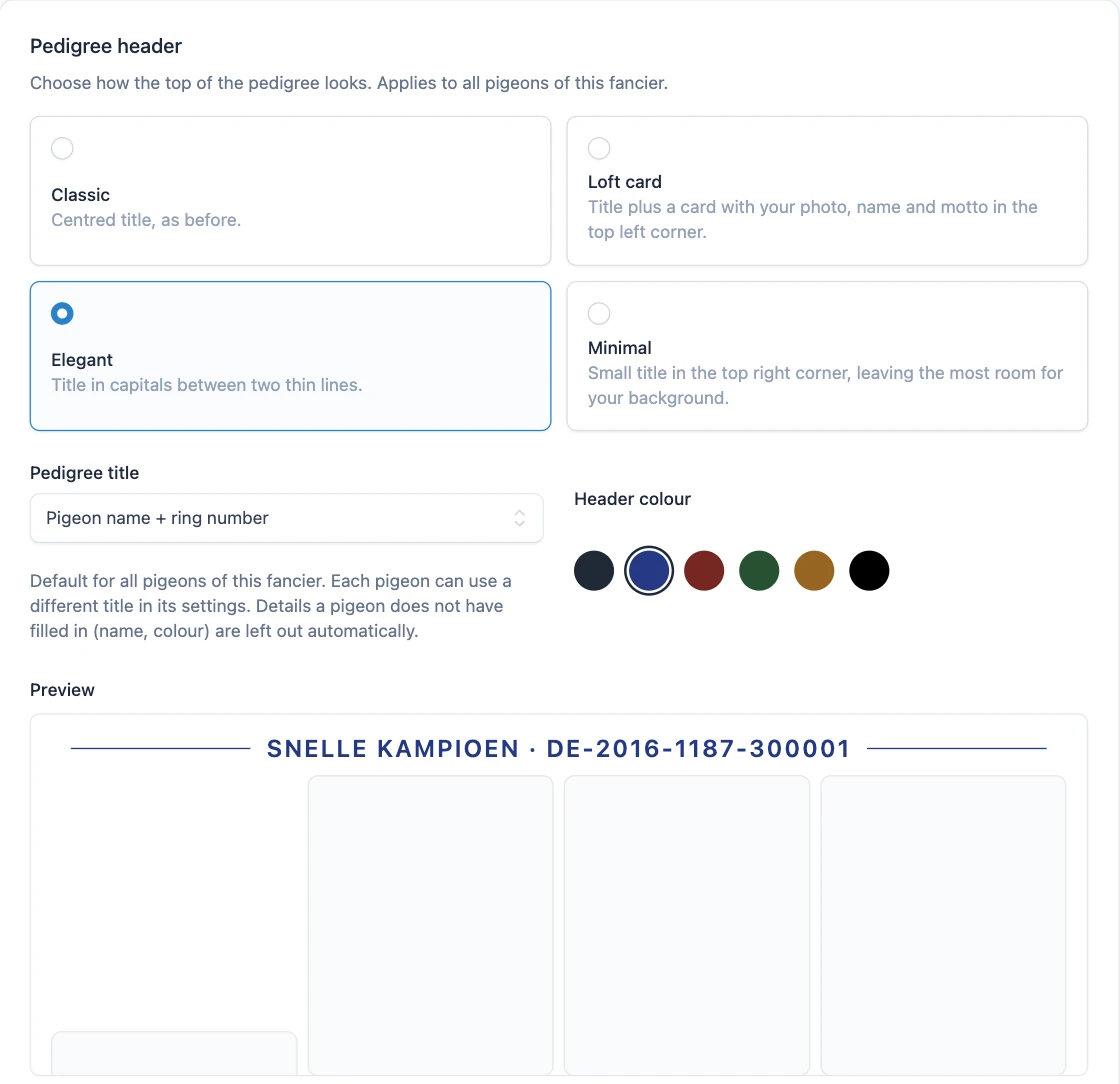
The header is the top of the pedigree. Pick one of four ready-made styles – nothing else needs to be set. The preview below the choices shows the result on one of your own pigeons before you save.
- Classic – a centred title, the way pedigrees have always looked.
- Loft card – the title plus a card in the top left corner with your fancier photo, name and an optional motto, e.g. "Racing pigeons since 1985".
- Elegant – the title in capitals between two thin lines.
- Minimal – a small title in the top right corner, leaving the most room for your background image.
Header Title and Colour
Pedigree title decides what the title says: "Pedigree of pigeon" with the ring number, the pigeon name, the fancier name, the colour, or no title at all. Details a pigeon does not have filled in are simply left out. Header colour offers six colours that print well on white paper.
Sharing
Turn on data sharing to let other fanciers find your pigeons when they build their pedigrees. Turn on the public profile to publish your shared pedigrees and breeding pairs on a public page with a short bio. The address of the page appears after you save.
Pigeons & Data
Choose the default view of the pigeon list (table or cards) and the unit for race distances, manage your categories and connect the fancier to MyPigeons for pigeon import and race result synchronization. Under Advanced you can move all pigeons and breeding pairs to another fancier.