



Documentation
Complete guide to using Pedigree for your racing pigeons. Learn how to effectively use all features.
Race Results
View and analyze race performance data for your pigeons.
Viewing Results
If your fancier is connected to MyPigeons, race results are automatically fetched. View distance, prize, coefficient, and competition size for each race.
Filtering Results
Filter results by season, scope (club or loft), and performance mode (Top 10, 1 year, 2 years, or lifetime).
Adding Results to Pedigree
You can add race results directly to your pigeon's pedigree text lines. This feature allows you to showcase your pigeon's racing achievements on the printed pedigree document.
The filter criteria available when adding results to pedigree are identical to those found on the pigeon profile page in MyPigeons: performance mode (Top 10, 1 year, 2 years, or lifetime), FCI-only races, club or loft scope, season selection, and prize preference (place, percentage, or coefficient).
Result Icons
When results are added to pedigree lines, they are prefixed with achievement icons based on the prize position:
- 🥇 Gold medal for 1st place
- 🥈 Silver medal for 2nd place
- 🥉 Bronze medal for 3rd place
- 🏆 Trophy for 4th place and higher
Display Mode
You can choose what identifier appears in the pedigree line for each result. Two display modes are available:
Race Name mode displays the name of the race (e.g., "Opening Race", "National Championship"). This is useful when you want to highlight specific prestigious races.
Season Year mode displays the year when the race took place (e.g., "2024", "2023"). This is useful when you want to show the timeline of achievements.
Result Format
Each result line in the pedigree contains the following information:
- Prize position (e.g., 1, 2, 15)
- Competition size - the total number of pigeons in the race
- Race distance in kilometers or miles
- Race identifier (either race name or season year, based on display mode)
Verified results from MyPigeons
A line added from the Generate from Results panel carries a green check badge. The badge means the numbers in the line — the prize, the number of pigeons and the distance — came straight from MyPigeons and nobody has changed them since.
The line is also a link. Opening it shows the official result list in MyPigeons, scrolled to the row of your pigeon, so anyone reading the pedigree can check the result themselves. On the screen a verified line has a dotted underline in its own colour; a printed pedigree keeps only the badge.
Only official club results can be verified. Results calculated for your own loft are added as plain text, without a badge.
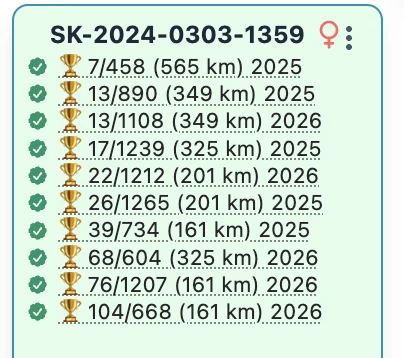
Writing a verified line your own way
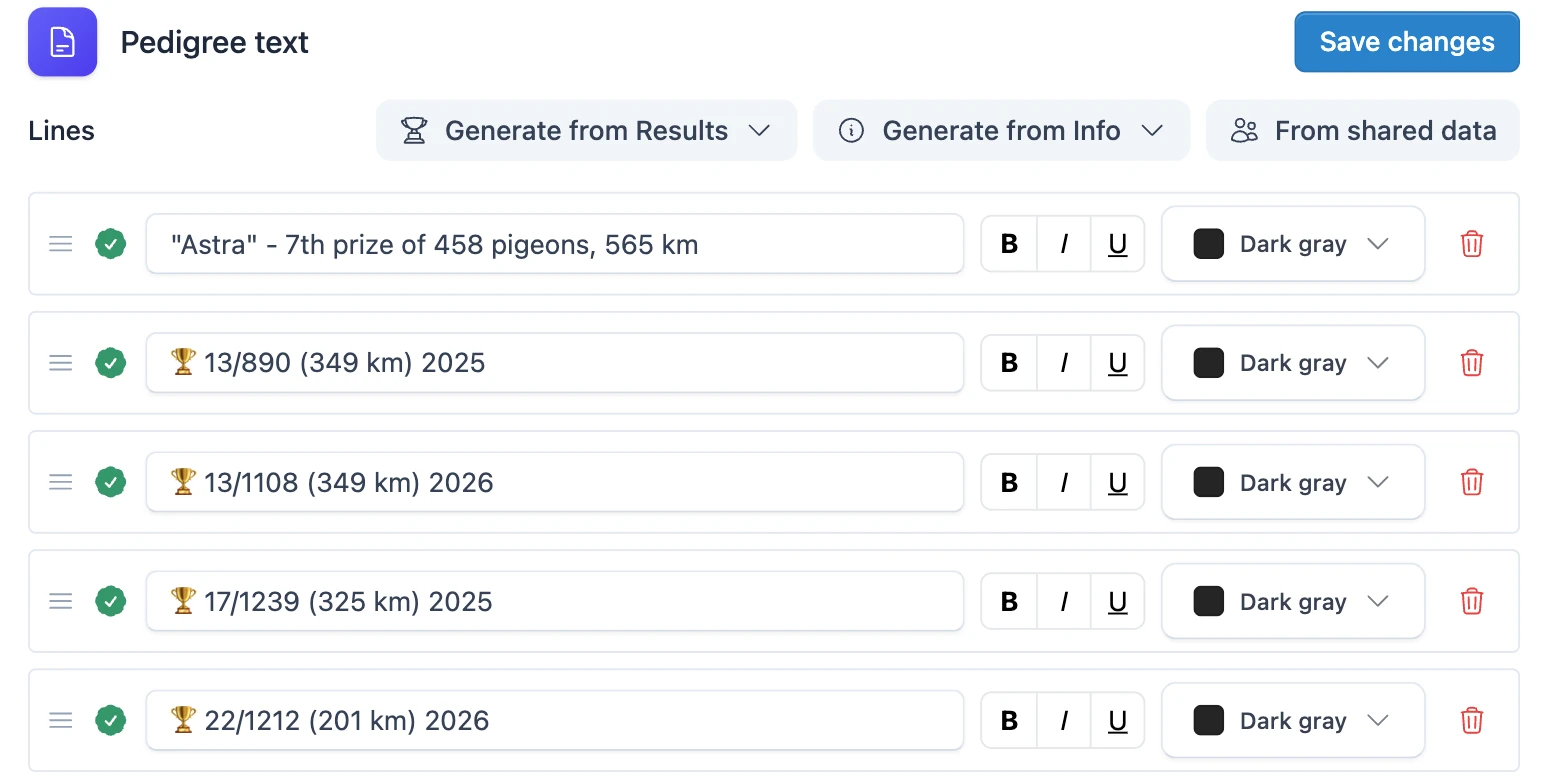
A verified line is yours to rewrite. The badge does not belong to the wording — it belongs to the numbers that came from MyPigeons: the prize, the number of pigeons and the distance. As long as those numbers stay exactly as they are, and in the order they came in, write the line however you like:
- Write it in your own language, or in the language of the buyer.
- Add the name of the pigeon, a title it won or a remark of your own.
- Shorten the race name or leave it out, change the brackets and dashes, replace the medal.
- Leave out a number you do not want to show. A line that keeps only the prize is still verified.
- Change bold, italics, underline, colour and the order of the lines. Formatting never touches the badge.
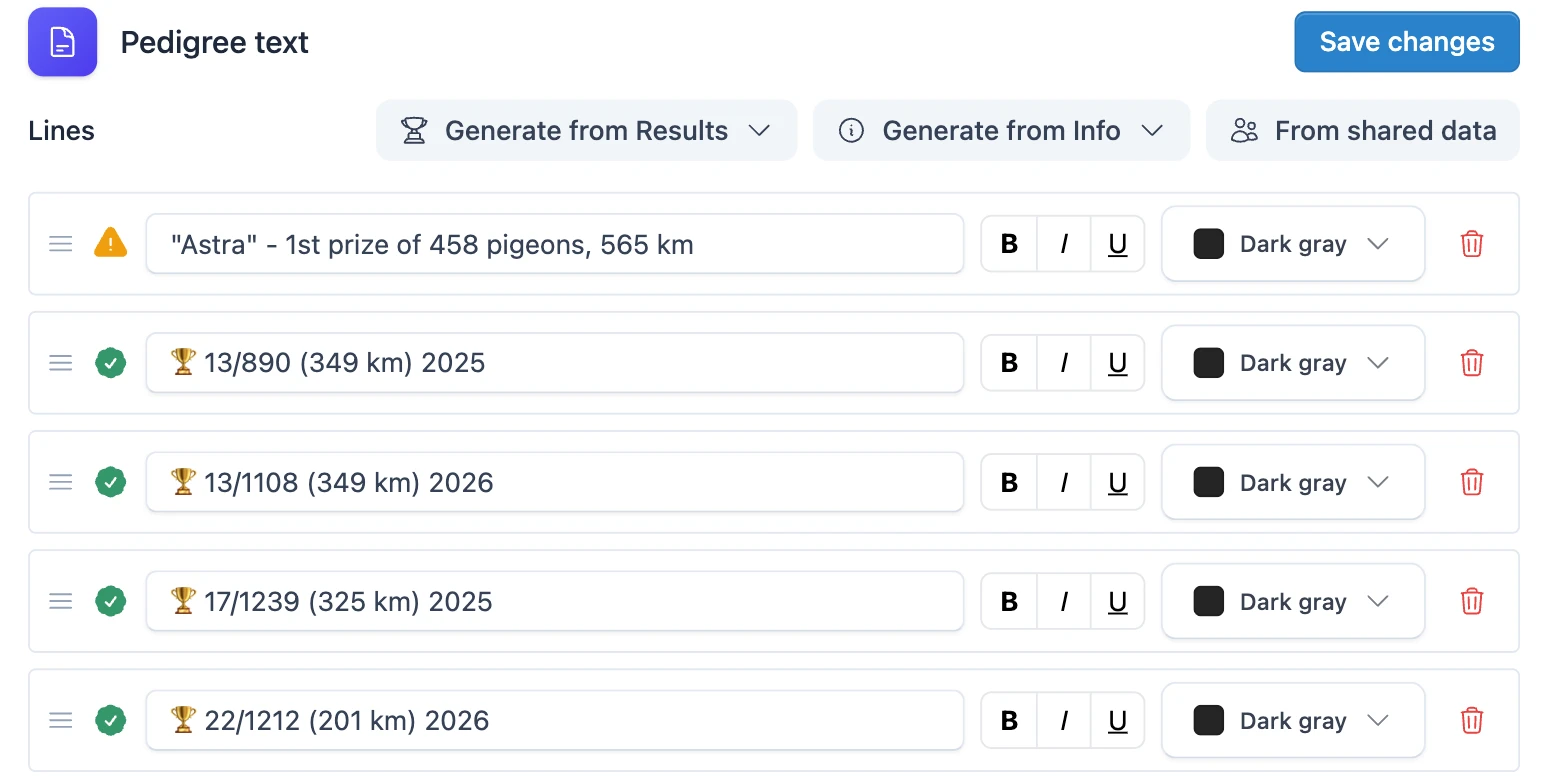
What removes the badge
The badge disappears as soon as the line stops telling the truth about the result it was issued for:
- You change one of the numbers, for example the prize or the number of pigeons.
- You swap two of the numbers or put them in a different order, so that one of them reads as another.
- You add a number that is not part of the result, such as a date or a year.
- You remove every number from the line.
- You copy the line to a different pigeon, or write a similar line by hand instead of adding it from the results.
- You change the ring number of the pigeon in its settings. The result was flown with the old ring, so it no longer belongs to the new one.
Note under the pedigree
As soon as a pedigree contains at least one verified result, a short note explaining the badge appears at the bottom of the page. It is there on the screen, in the PDF and in the image, so even a buyer who does not know the application understands what the badge means.

Verified results on a shared pedigree
The badge belongs to the pedigree, not to your account, so it travels with it. A pedigree you share in the app, publish as a public link, print to PDF or export to a file keeps every verified result, and the person reading it can open the line and land on the official result list in MyPigeons. They need no account of their own — which is the whole point when you are selling a pigeon.
Every badge is checked again each time a pedigree is displayed, no matter who is looking. A line whose numbers were changed after it was verified is shown as plain text to everyone, and nobody can add a badge to a line by hand or move a verified result onto another pigeon.
One case is worth knowing: if the person you share with already keeps that pigeon, they keep their own pedigree text. Sharing never overwrites what somebody has written, so your verified lines do not appear in their copy — they will see them on the pedigree you sent, not on the pigeon they already had.
Finding Results
Results are retrieved from MyPigeons based on the pigeon's ring data. The system automatically matches your pigeon with its race history in the MyPigeons database.
The system searches for results from two sources: pigeons that you have connected to your MyPigeons account (your own pigeons), and pigeons that are marked as public by other fanciers in the MyPigeons network.
The matching is done using the ring data (country code, year, organization code, and ring number). Make sure your pigeon's ring information is correctly entered for accurate result retrieval.