



Documentation
Complete guide to using Pedigree for your racing pigeons. Learn how to effectively use all features.
Pedigree View
Understand the pedigree tree display and learn how to customize it.
Understanding the Pedigree Tree
The pedigree tree shows ancestors of a pigeon. Fathers appear on top rows, mothers on bottom rows. Click on any ancestor to view their full pedigree.
Number of Generations
Choose between 4 and 5 generations in the pedigree tree. More generations show more ancestors but leave less room for each box.
Adding Parents
Click on an empty parent slot to add a father or mother. Search for existing pigeons or create new ones directly from the pedigree view.
Pedigree Text
Add custom text lines to each pigeon box. Include race results, achievements, or breeding information. Text can be formatted with bold, italic, or underline.
Text size in the boxes
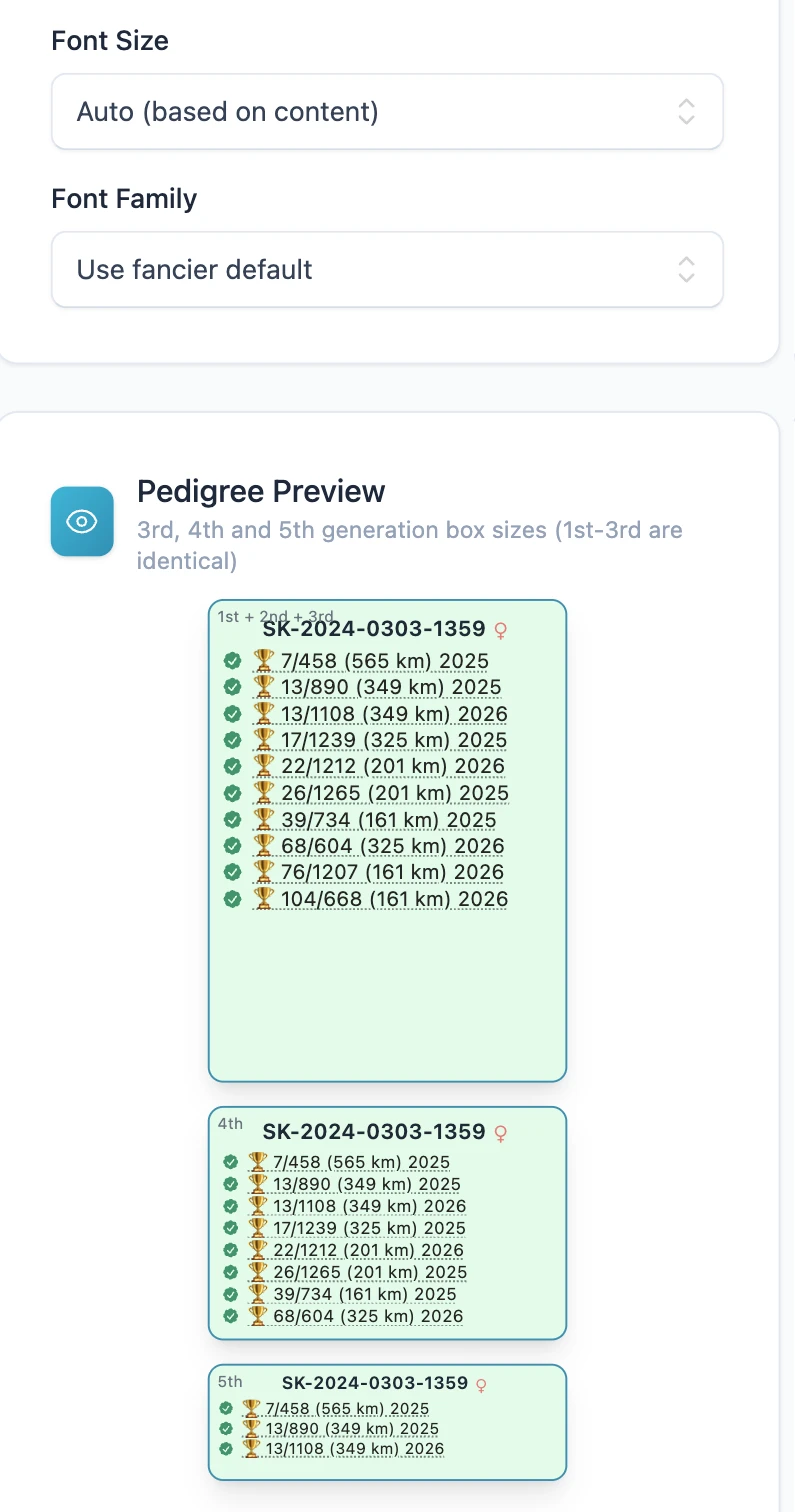
The application picks the text size of every box itself, so that the lines fill the box without spilling out of it.
Every line stays on one row. A line too long for the box ends with three dots instead of wrapping, which would break the layout of a printed pedigree. Result lines are usually shorter when you switch the results panel to the year instead of the race name.
The Font size setting is an upper limit, not a fixed size. Auto uses the size that suits most pedigrees, Large is for pigeons with only a few lines and Small keeps the text small everywhere. A box with many lines is always reduced further so that everything fits.
Visual Customization
Customize box colors, borders, and font sizes. Choose background images for a personalized look. Settings are saved per fancier.
Changing the Look from the Pedigree
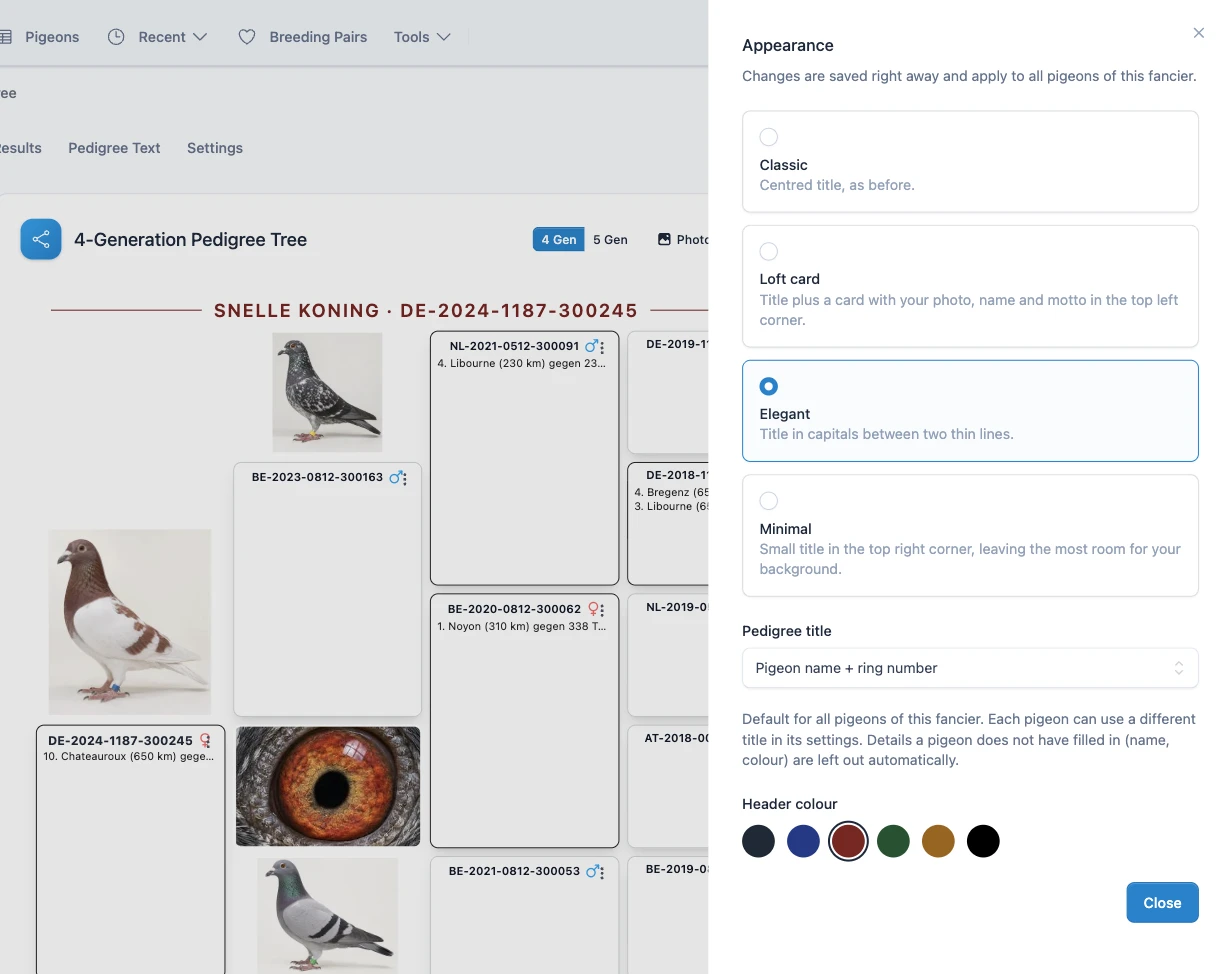
Click Appearance above the pedigree to open a side panel with the same header styles, titles and colours as in the fancier settings. Every choice is saved immediately and the pedigree next to the panel redraws, so you can try the styles and see the result straight away.
The changes apply to all pigeons of the fancier. If the pigeon you are looking at has its own title, the panel tells you and offers to switch it back to the fancier title.
Downloading Pedigrees
Download pedigrees as PDF files for printing or sharing. The PDF includes all customizations you have applied.