



Documentation
Complete guide to using Pedigree for your racing pigeons. Learn how to effectively use all features.
Managing Pigeons
Learn how to add, edit, search, and organize your pigeon collection.
Adding Pigeons
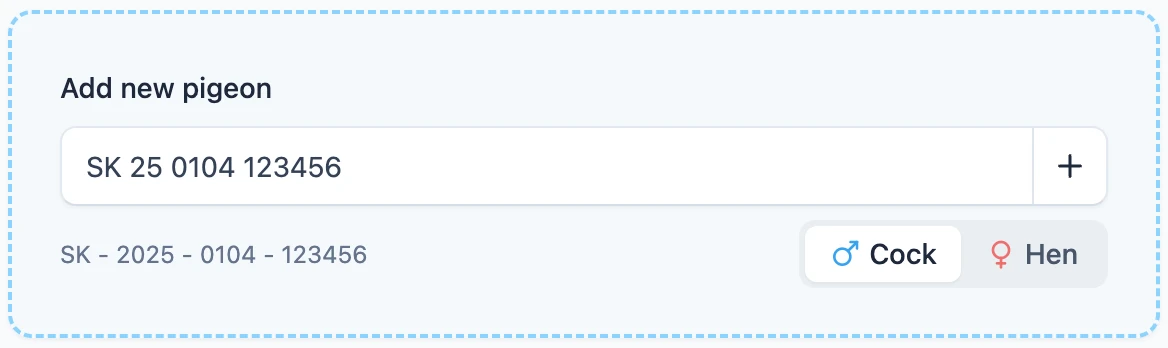
Click "Add Pigeon" to create a new pigeon record. Enter the ring data (country, year, organization, ring number) and optionally add name, color, and strain.
Editing Pigeon Information
Click on any pigeon to view its pedigree, then go to Settings to edit its information. You can update name, color, strain, notes, and photos.
Changing a ring number
The ring number is what identifies a pigeon, so it is saved separately from the rest of its settings, with its own Save ring data button. Correcting a typo there moves the pigeon to the corrected ring and it keeps its name, photos, pedigree text, parents and offspring.
Because the ring is the pigeon's identity, three things follow from changing it:
- Verified results lose their badge. A result was flown with a particular ring, so it no longer belongs to the new one. The application tells you how many results were affected. Putting the old ring back brings the badges back, as long as you have not saved the pedigree text in the meantime; otherwise add the results again from the results panel.
- The link to MyPigeons usually has to be made again. A corrected ring is a different pigeon for MyPigeons, so statuses, categories, statistics and new results stop arriving until you link the pigeon again in its settings.
- A ring that is already used in the same loft is refused. Each loft can hold a pigeon only once, so rename or delete the other pigeon first.
Adding Photos
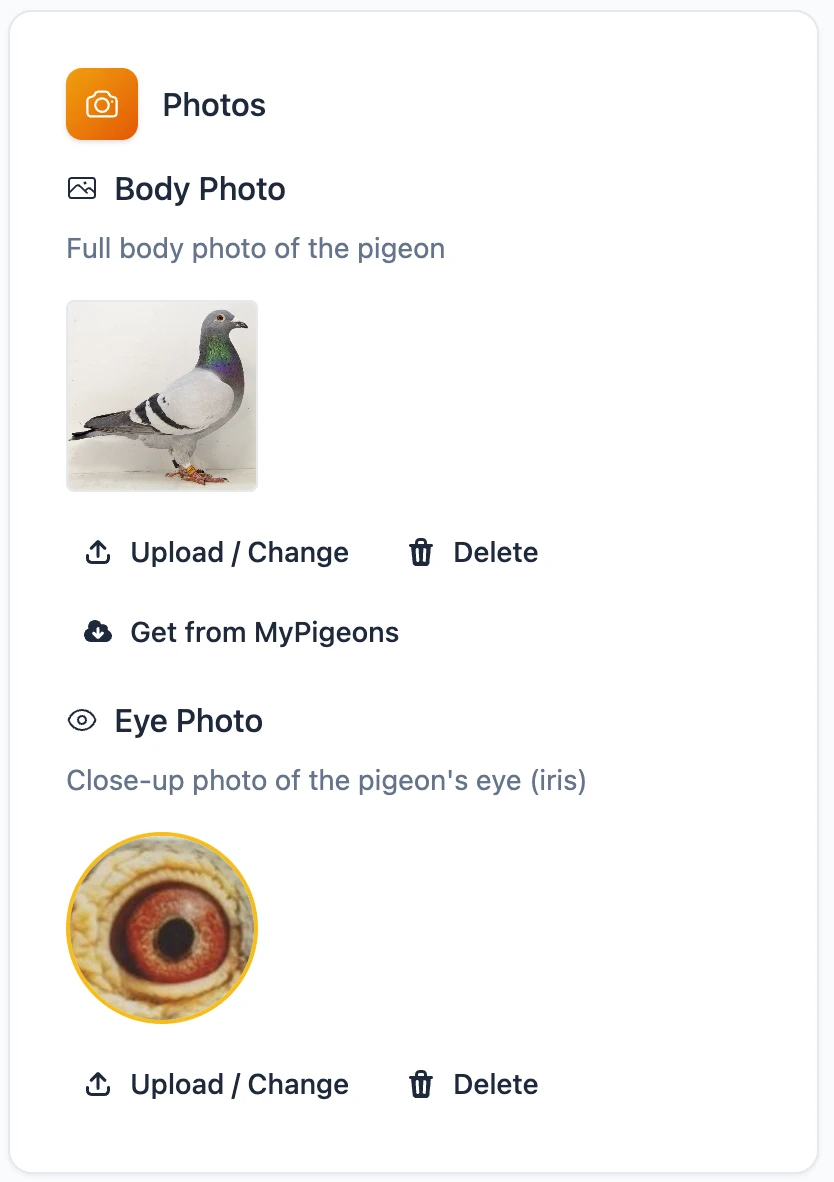
Upload body and eye photos to make your pedigrees more personal. During upload, you will be asked to crop images to a 1:1 square format for optimal display in pedigree templates.
Uploading External Pedigrees
Already have a pedigree from another program like Compuclub, Pipa, or other breeding software? You can upload it directly instead of manually entering all ancestors.
Go to the pigeon's Settings page and find the "Uploaded Pedigree Image" section. Click "Upload/Change" to select a JPG or PNG image of your existing pedigree. The image will be automatically resized for optimal display.
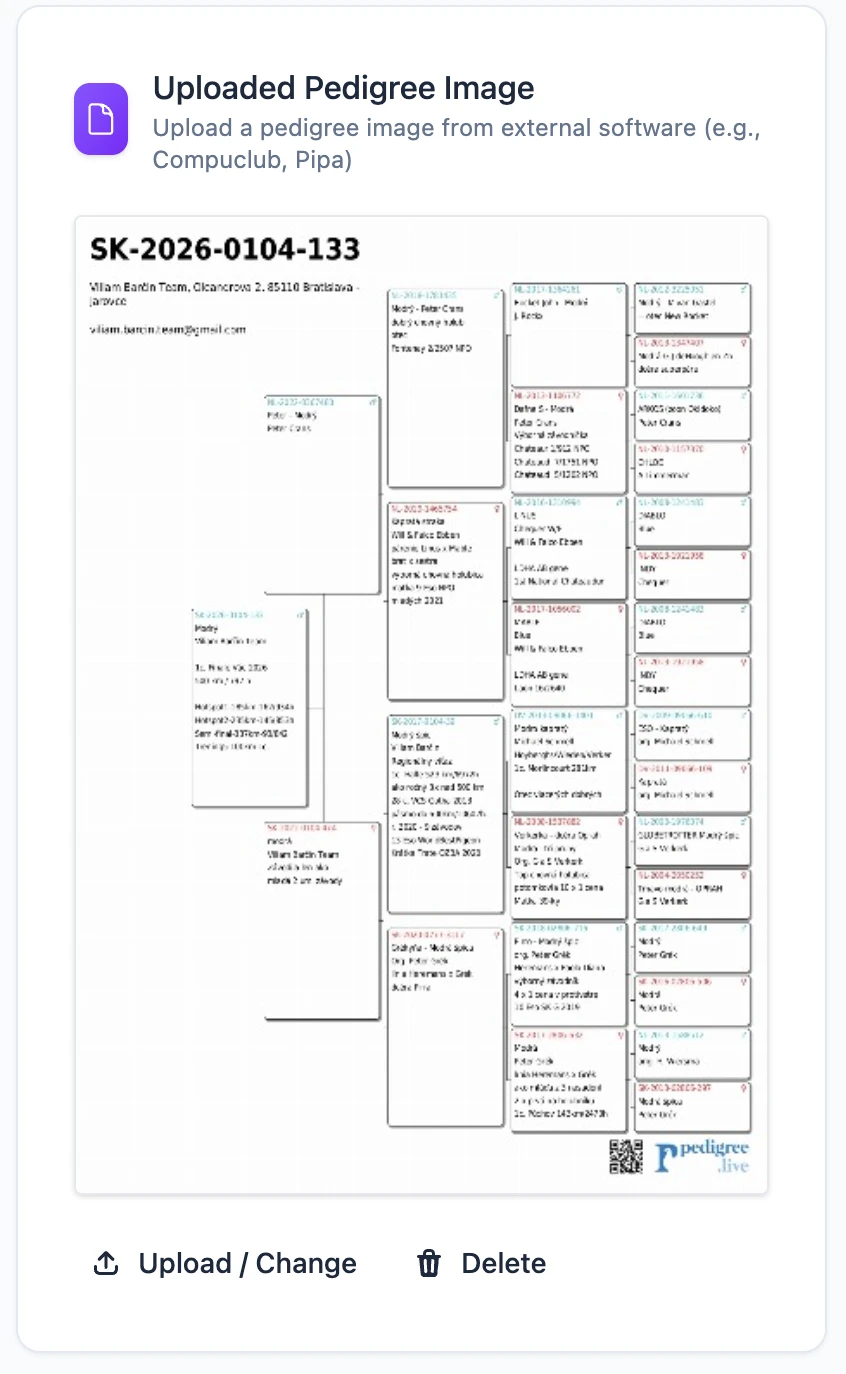
Once uploaded, you can switch between the "Generated" pedigree (built from parents you've added in the app) and the "Uploaded" pedigree image on the pedigree view page. Both options are available — you decide which one to display.
The uploaded pedigree is also reachable straight from the pedigree tree — both from the pigeon's own box and from any ancestor box. A small document icon appears next to the ring number; click it to open the uploaded pedigree in a lightbox.
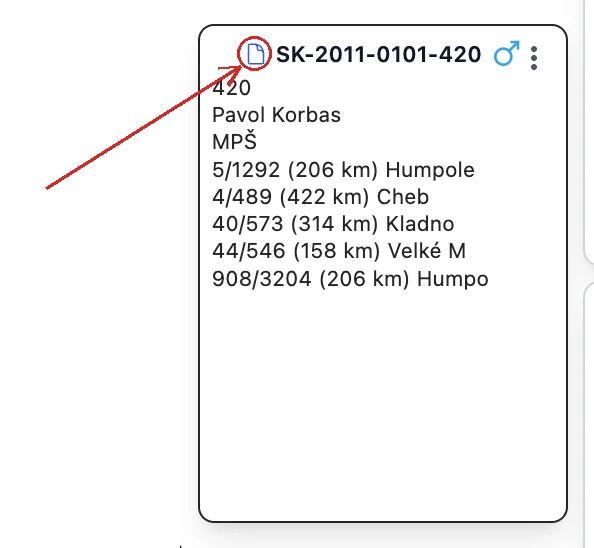
When a box has no pedigree text filled in, the uploaded pedigree is shown as a thumbnail filling the whole box, so you can simply click the image itself.
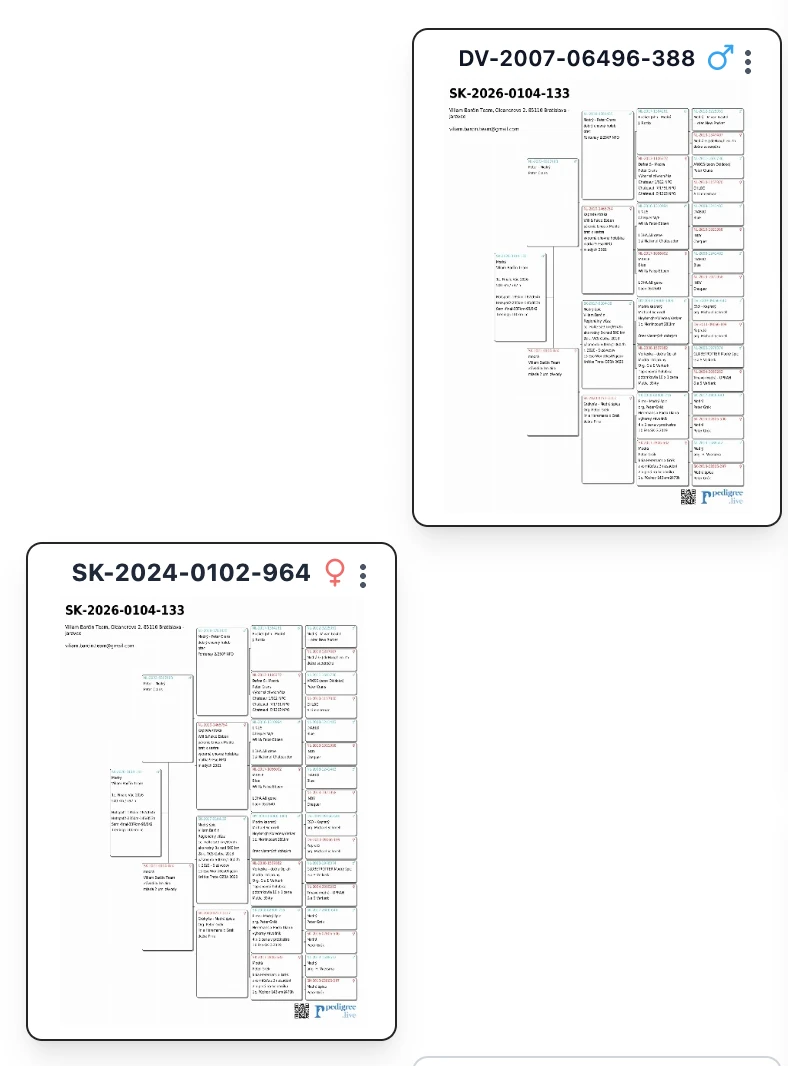
Uploaded pedigrees work with public sharing too. When you share a pigeon publicly, visitors can view both the generated and uploaded pedigree versions.
Uploaded pedigrees travel with the pigeon. When somebody accepts a pigeon you shared with them, or imports a copy of a shared pigeon, the uploaded pedigree image is copied along with it — for the pigeon itself and for every imported ancestor.
Searching and Filtering
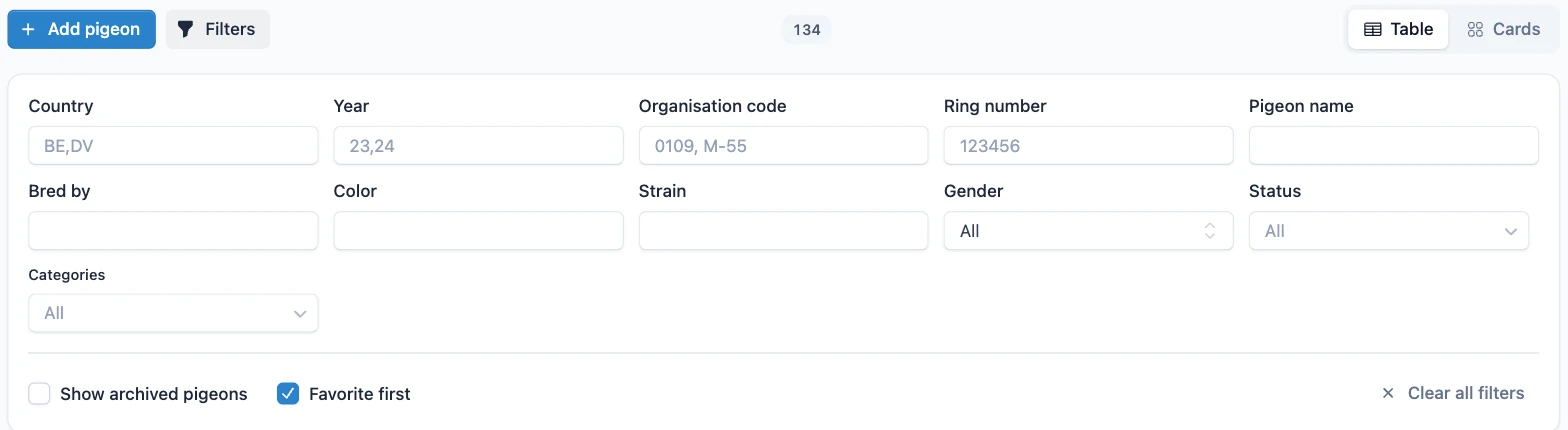
Use the filter bar to search pigeons by ring data, name, or other criteria. Toggle archived pigeons visibility and switch between tile and table views.
Archiving Pigeons
Archive pigeons you no longer actively breed. Archived pigeons are hidden from the main list but remain in pedigrees and can be restored anytime.
Pigeon Status
Track your pigeons' current state using the status feature. Each pigeon can have one of seven statuses that help you organize and filter your collection.
Available Statuses
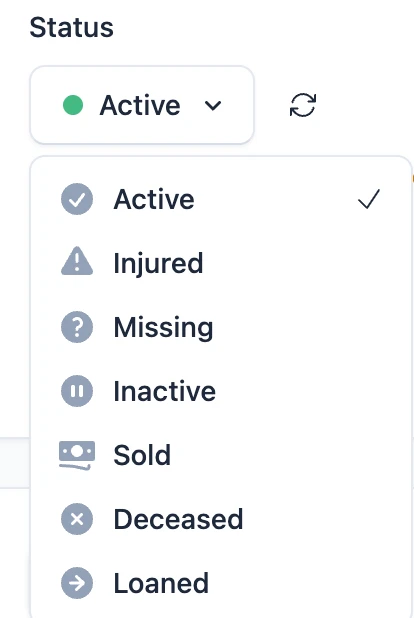
There are seven status types: Active (default for new pigeons), Injured (temporarily unfit), Missing (lost during race or training), Inactive (not currently racing), Sold (transferred to another fancier), Deceased, and Loaned (temporarily with another fancier).
Changing Status
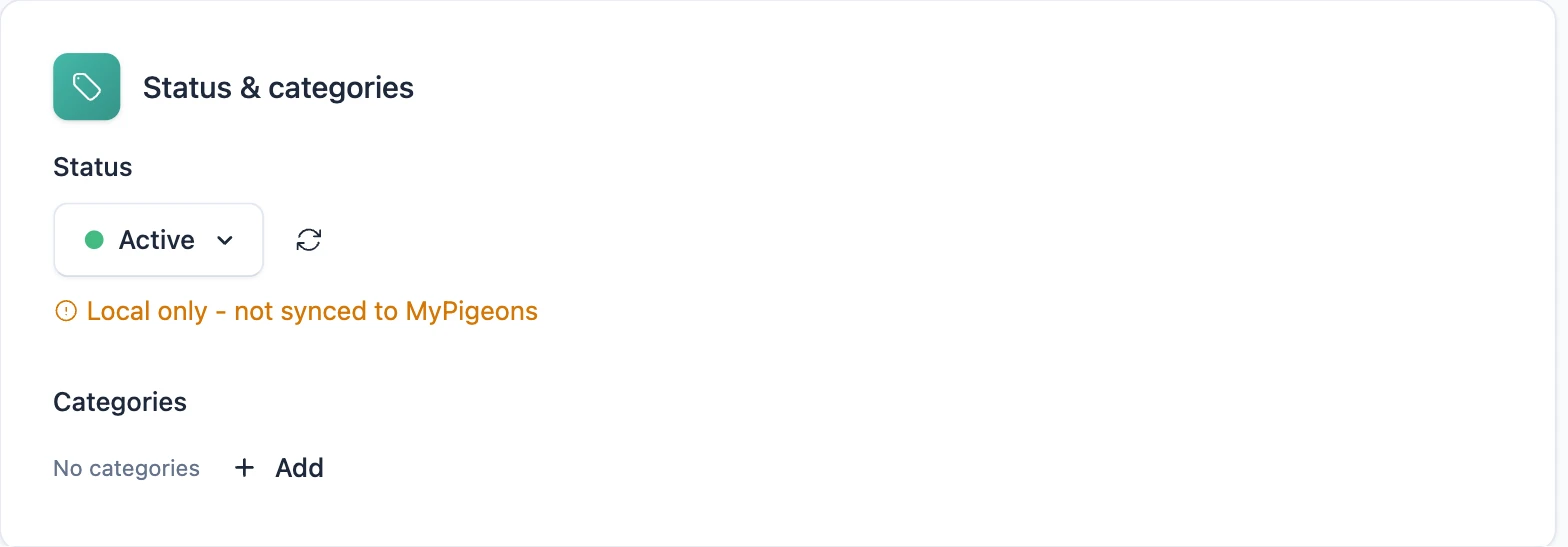
To change a pigeon's status, go to the pigeon's Settings page and select a new status from the dropdown. The change is saved immediately. You can also filter pigeons by status using the multi-select filter on the pigeon list page.
Status Synchronization with MyPigeons
If your fancier is connected to MyPigeons, pigeon statuses stay in sync automatically in both directions — what you change in Pedigree reaches MyPigeons, and what you change in MyPigeons reaches Pedigree, without you doing anything. Manual synchronization is still available for the rare case when you need to force a re-sync, for example after a connectivity outage.
Sync Directions
Download from MyPigeons: Updates your Pedigree statuses with the current values from MyPigeons. Use this when you've made changes in MyPigeons and want to reflect them in Pedigree.
Upload to MyPigeons: Sends your Pedigree statuses to MyPigeons. Use this when you've made changes in Pedigree and want to update MyPigeons.
How to Sync
Automatic sync: Status changes are synchronized with MyPigeons automatically in both directions — no action needed. Manual re-sync: On the Pigeons page (status filter), the "Re-sync status" button lets you re-run the sync for all connected pigeons at once, for example after a connectivity outage.
Sync single pigeon: On a pigeon's Settings page, click the sync icon next to the status dropdown. Choose the direction and confirm. This is useful when you only need to update one pigeon.
Requirements
Status sync only works for pigeons that are connected to MyPigeons (imported from MyPigeons or manually linked). Pigeons created only in Pedigree without a MyPigeons connection cannot be synced.
Limitations
Syncable statuses (bidirectional): All statuses sync in both directions: Active, Injured, Missing, Inactive, Sold, Deceased, and Loaned.
Ownership: A status coming from MyPigeons is applied only to pigeons of the fancier who owns them in MyPigeons. If you are not the MyPigeons owner of a pigeon, your local status stays untouched and is not uploaded.
Authorization: When uploading to MyPigeons, only pigeons belonging to fanciers you have approved access to can be updated. This ensures you can only modify your own data in MyPigeons.
Sharing Pedigrees
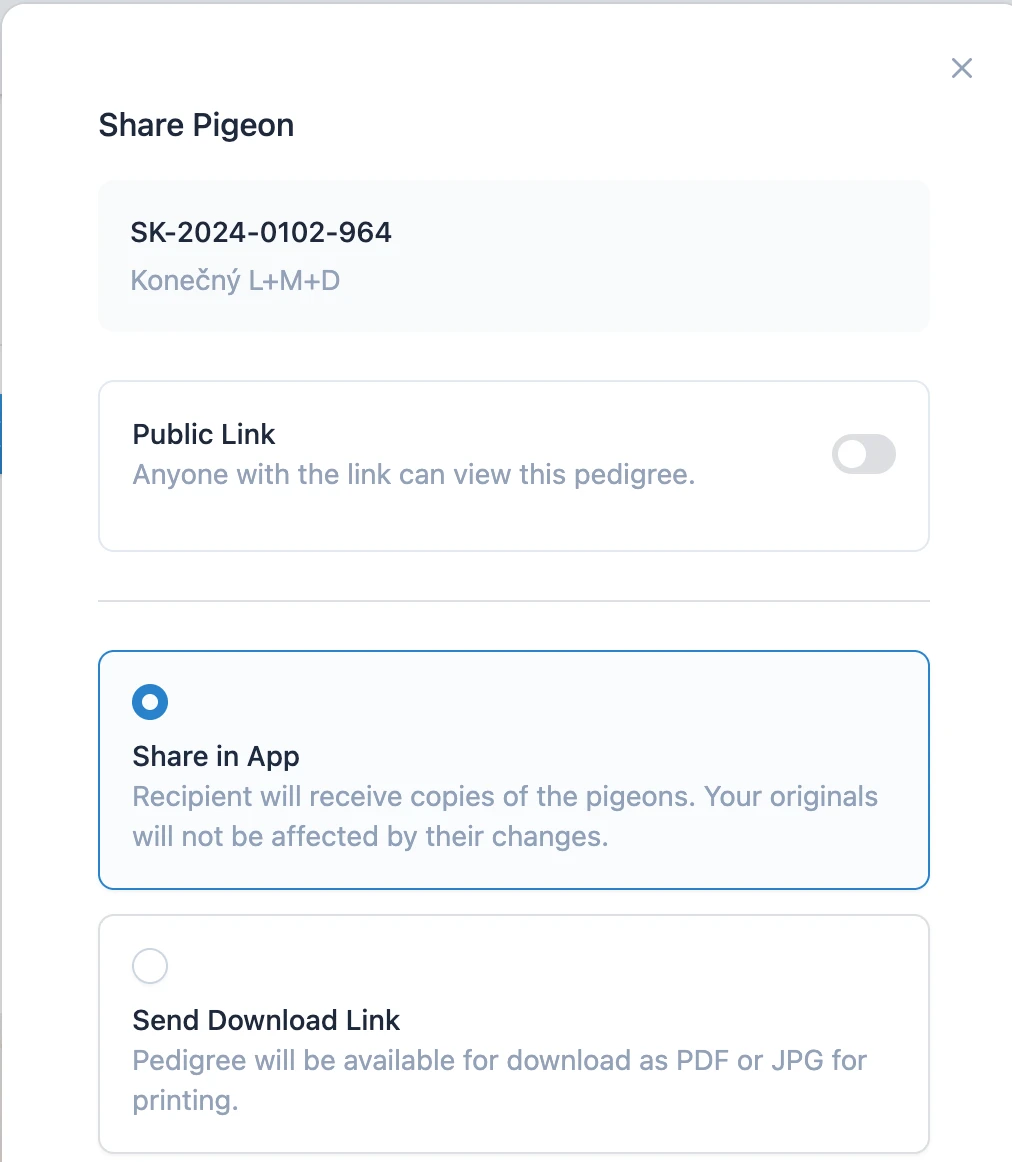
Want to share your pigeon's pedigree with a potential buyer, fellow fancier, or on social media? Click the "Share" button on the pedigree page to open the sharing modal with three options: Public Link, Share in App, and Send Download Link.
Public Link
Enable the "Public Link" toggle to generate a unique URL that anyone can view without logging in. The link is displayed in a copyable input field — simply click the copy button and share it via WhatsApp, email, Facebook, or any messaging app.
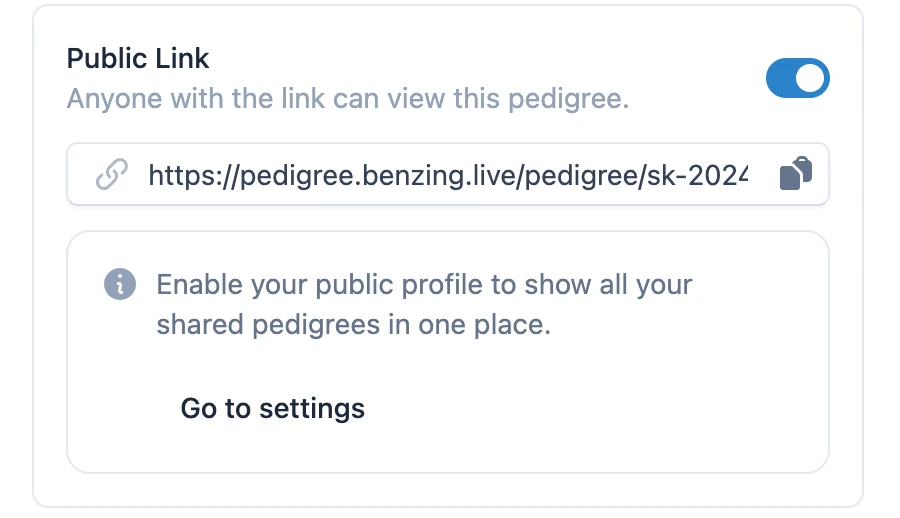
The public link also appears as a QR code on printed pedigrees, making it easy to share physical copies. When someone scans the code, they'll see the complete pedigree tree in their browser. If you share multiple related pigeons publicly, visitors can navigate between their pedigrees by clicking on linked ancestors.
Your privacy is protected — public links only show the pedigree tree itself. Your personal contact information, account details, and other pigeons remain completely private. You can disable sharing at any time by turning off the toggle, and the link will immediately stop working.
Share in App
Use "Share in App" to send a copy of the pedigree directly to another user's account. Enter their email address and select how many generations to share (2-5). The more generations you select, the more ancestor pigeons will be included in the share.
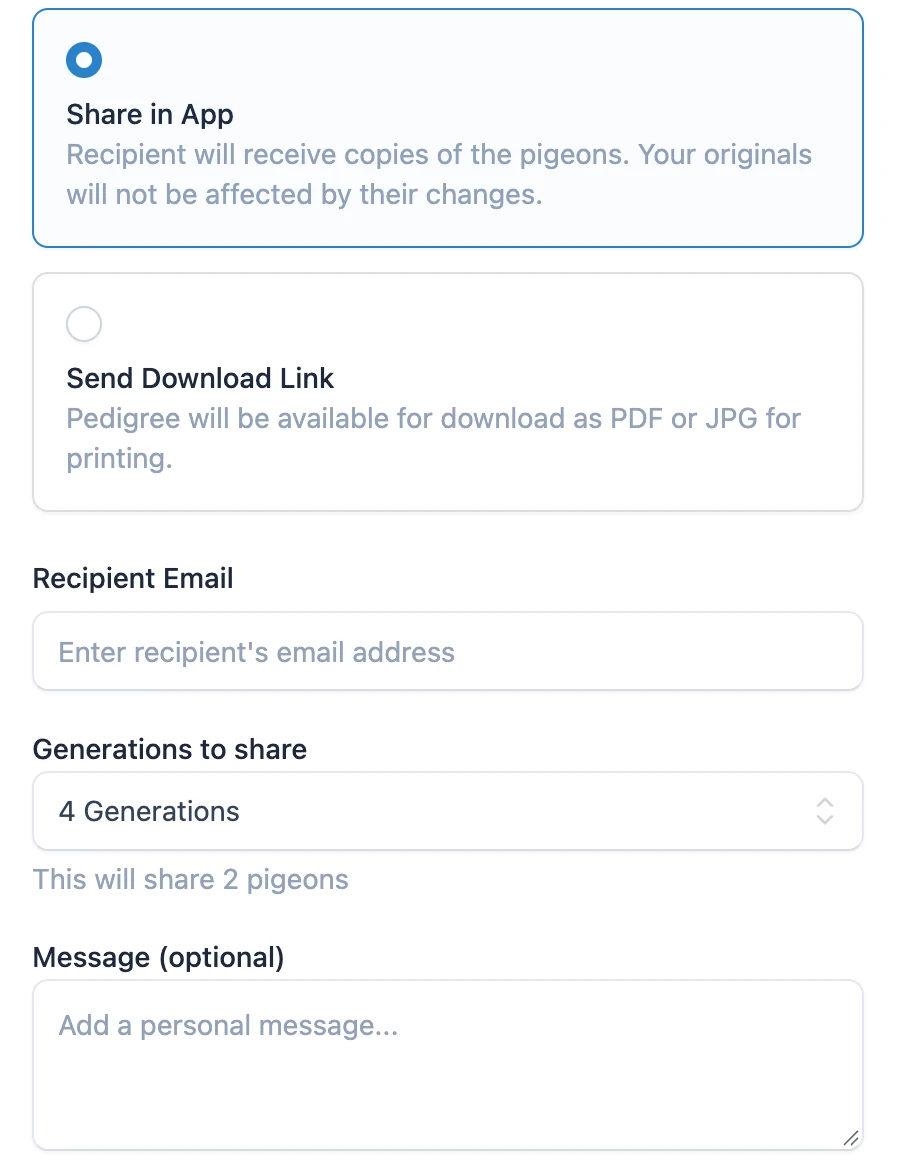
Important: The recipient receives copies of your pigeons — your originals remain completely untouched. Any changes they make to their copies (names, notes, colors) will not affect your pigeons in any way. This is perfect for sharing breeding stock information with buyers or partners.
What the recipient sees: They will receive a notification (badge on their avatar) and an email about the pending share. On the "Pending Shares" page, they can see details about the shared pigeon, who sent it, and how many pigeons will be imported.
Accepting the share: The recipient chooses which fancier account to import the pigeons into, selects the number of generations (up to what you shared), and can optionally enable "Archive ancestors" to keep only the main pigeon active while archiving the rest. After accepting, all pigeons appear in their account with complete parent relationships.
If the recipient doesn't have an account yet, they'll receive an invitation email. After registering with the same email address, the pending share will automatically appear in their account.
Send Download Link
Use "Send Download Link" to generate a PDF or JPG file of the pedigree and send it via email. This is perfect for sharing printable pedigrees with people who don't use the app, such as buyers who just want a document for their records.
Enter the recipient's email address, choose the format (PDF for documents, JPG for images), and select either 4 or 5 generation layout. You can also add a personal message that will be included in the email.
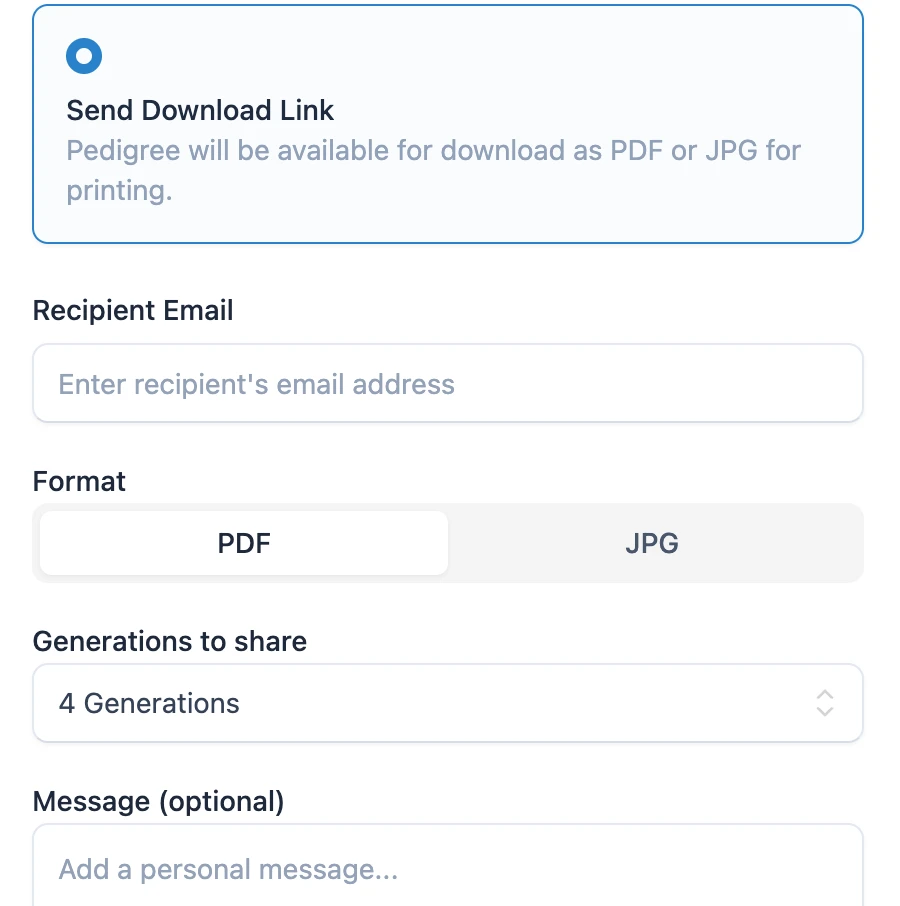
The recipient receives an email with a download link that's valid for 5 days. They can download the pedigree file directly — no account or login required. After the link expires, the file is automatically deleted from our servers.